

Individual payments
Send a payment to a single recipient directly from the Payments dashboard.Bulk payments
Upload a CSV file to pay multiple recipients at once. A template is provided to help you format the file correctly. You can include the same recipient email on more than one line to send several payments to the same person in a single batch: for example, one row for a January invoice and another for a February invoice. Each row becomes its own payment, and the recipient is only created or matched once.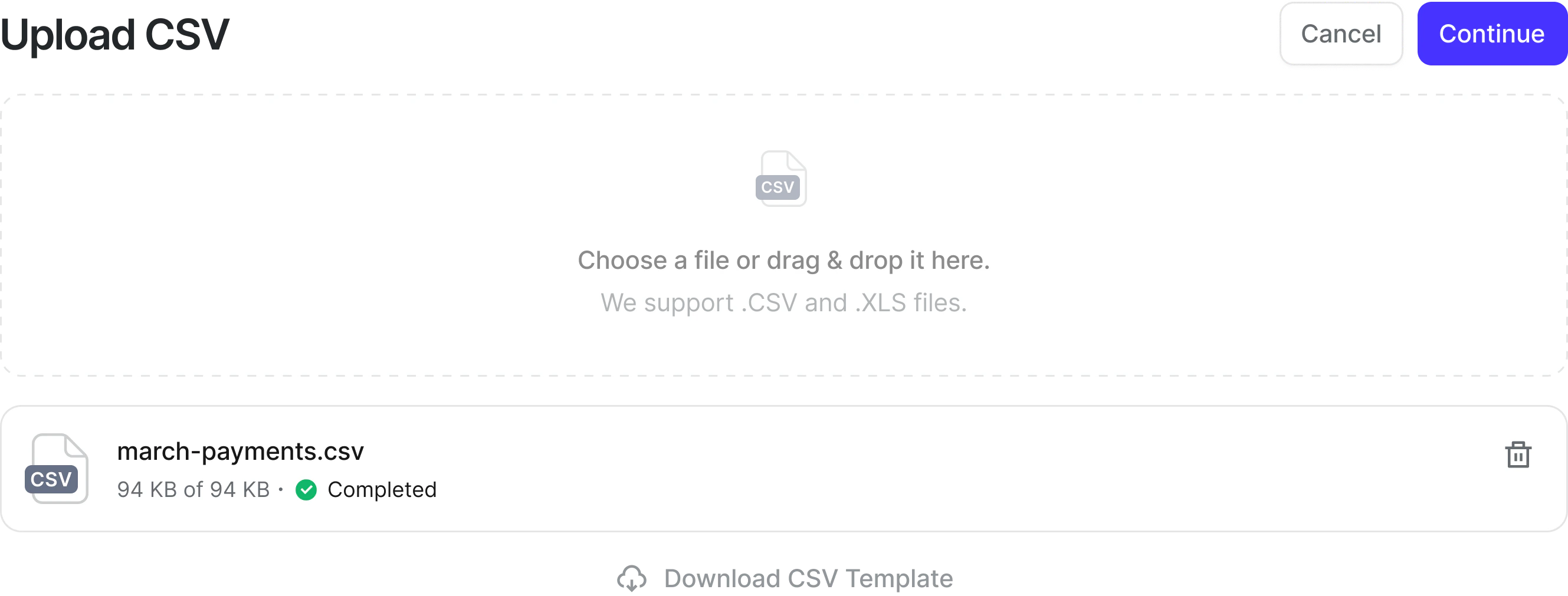
Send onboarding link before payment
Use the Send onboarding link option when you want a recipient to complete onboarding (payout method and tax information) before you send their first payment. This is useful if you want to confirm a recipient is ready to receive funds without creating a payment yet. You can set this in two ways:- In the CSV: fill in the
send onboarding link (optional)column when you prepare the file. Accepted values aretrue/false,yes/no,y/n, or1/0. Blank cells are treated asfalse. - On the review screen: toggle Send onboarding link per recipient after uploading the CSV. The toggle defaults to the value from your CSV, or to off if the column is blank.
How to send a payment
- Open your Payments Dashboard
- Select Send payments
- Add recipients or upload a CSV
- Review the confirmation screen and submit
If Karat has requested updated beneficial owner information, a banner appears on the Payments dashboard and Send payments is disabled until the request is completed. See Beneficial owner verification for payout sending for details.
To send international payments, you must first enable at least one international payment method. See How to access Payments for setup instructions.
Choosing tax form collection
When you add a new recipient in the send-payment form, use Collect tax forms to choose one of three options:- Now: tax forms are collected before any payment can be released.
- $600: collection is deferred until a payment would meet or exceed the collection threshold for your organization. Until then, the recipient completes a shorter onboarding and can receive payments. When a payment would cross the threshold, tax information is required before that payment is released.
- Skip: tax form collection is turned off for that recipient.
Sending an onboarding link
You can send a recipient an onboarding link before creating a payment. When you add a new recipient, enable the Send onboarding link toggle. The recipient receives an email inviting them to:- Submit their tax information (if tax form collection is enabled)
- Select their preferred payment method
The onboarding link is optional. If you skip it, the recipient completes onboarding when they receive their first payment instead.
Scheduling a payment
Instead of sending a batch right away, you can schedule it for a later date or set it to repeat, then pause, skip, edit, or delete the schedule from the Scheduled tab. See Scheduling payments for the steps.Tracking payments
Every payment can be tracked from your Payments Dashboard, at the batch level and per recipient, and you can download a PDF remittance for any payment. See Tracking payments for the filters, recipient details, and remittance steps.Exporting payments
You can export the payments table to a CSV, optionally bundled with a remittance PDF for each eligible Karat payment. The export uses the filters and search you have applied. See Exporting payments for the steps, export history, and retries.Exporting recipients
You can export a CSV of your recipients from the Recipients view of the Payments dashboard, optionally bundled with each recipient’s latest W-9 or W-8. Exports respect the filters and search applied to the table and run as background jobs, so large exports keep running if you navigate away. See Exporting recipients for the steps.Recording off-platform payments
If you paid someone outside of Karat, you can still record it in your dashboard. This keeps your records complete and ensures accurate 1099 generation for eligible domestic recipients.Marking a payment as a reimbursement
If a payment repays a recipient for expenses rather than paying them for services, you can mark it as a reimbursement so it’s excluded from 1099-NEC totals. You can do this when sending an individual payment, in the bulk CSV upload (via theis_reimbursement column), or from the overflow menu on an
existing payment row. See
Marking payments as reimbursements
for details.
Karat is a fintech company, not an FDIC-insured bank. Banking and Card services provided by Grasshopper Bank, N.A., First Internet Bank of Indiana, and Cross River Bank, Members FDIC.