

Create Banking card
Banking Cards are connected to a Karat checking account and pull directly from its available balance. There is no statement and no repayment required. Spending is limited to the cash in the account. Use this to spend cash on hand or withdraw from ATMs. To create a Banking Card, go to Banking > Cards > Issue new card, select yourself or a team member, choose virtual or physical, select which checking account the card should draw from, and set spend limits.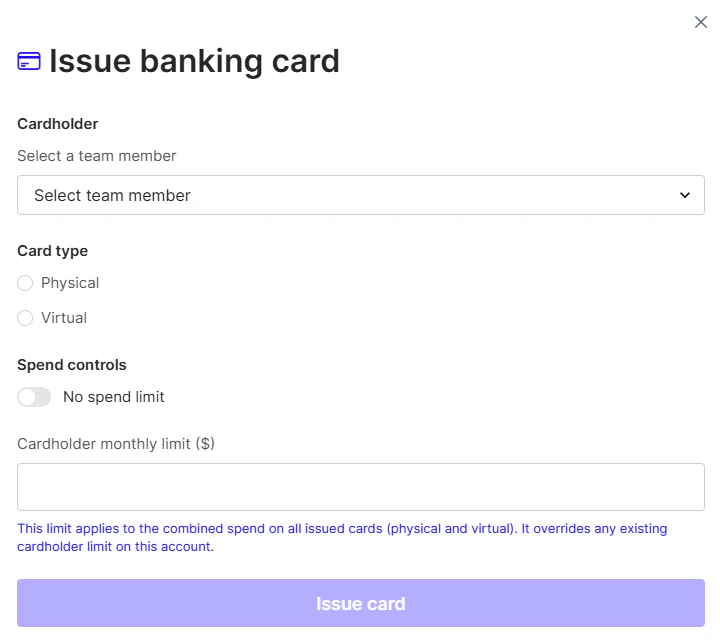
Create Karat Card
The Karat Card is a corporate card designed for business spend and rewards. Transactions accumulate throughout your monthly statement period. At the end of each billing cycle, a statement is issued showing your total balance due. The full statement balance must be paid by the due date. Spending is subject to your organization’s approved limit established during underwriting. To create a Karat Card, go to Charge Card > Cards > Issue new card, select yourself or a team member, choose virtual or physical, and set spend limits.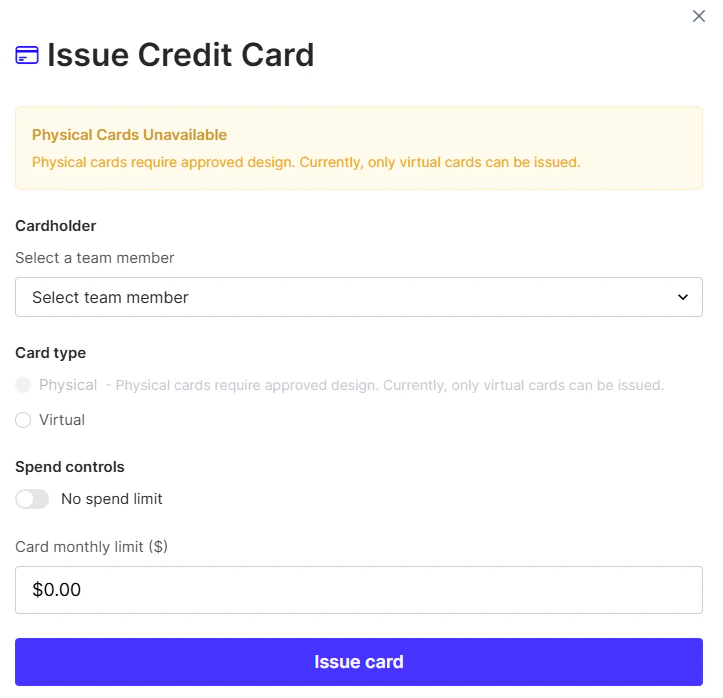
Name a card
You can give a Banking Card or Karat Card an optional nickname, such as “Office supplies” or “Ad spend”, to make it easier to tell cards apart. Nicknames can be up to 40 characters. A nickname is only for organizing your cards. When you pay, use the name printed on the card.Add a nickname when issuing a card
When you issue a card from Charge Card > Cards > Issue new card or Banking > Cards > Issue new card, enter a name in the Nickname (optional) field. Leave it blank to issue the card without a nickname.Add, rename, or clear a nickname
- Open the card from your cards list.
- Click the ⋮ menu on the card image.
- Select Add nickname, or Rename nickname if the card already has one.
- Enter the new nickname and save.