.svg?fit=max&auto=format&n=RJX8V93qZY-fDido&q=85&s=929a6a0447f18d5464dae949115c3c6a)

Watch the how-to:
Read the how-to:
-
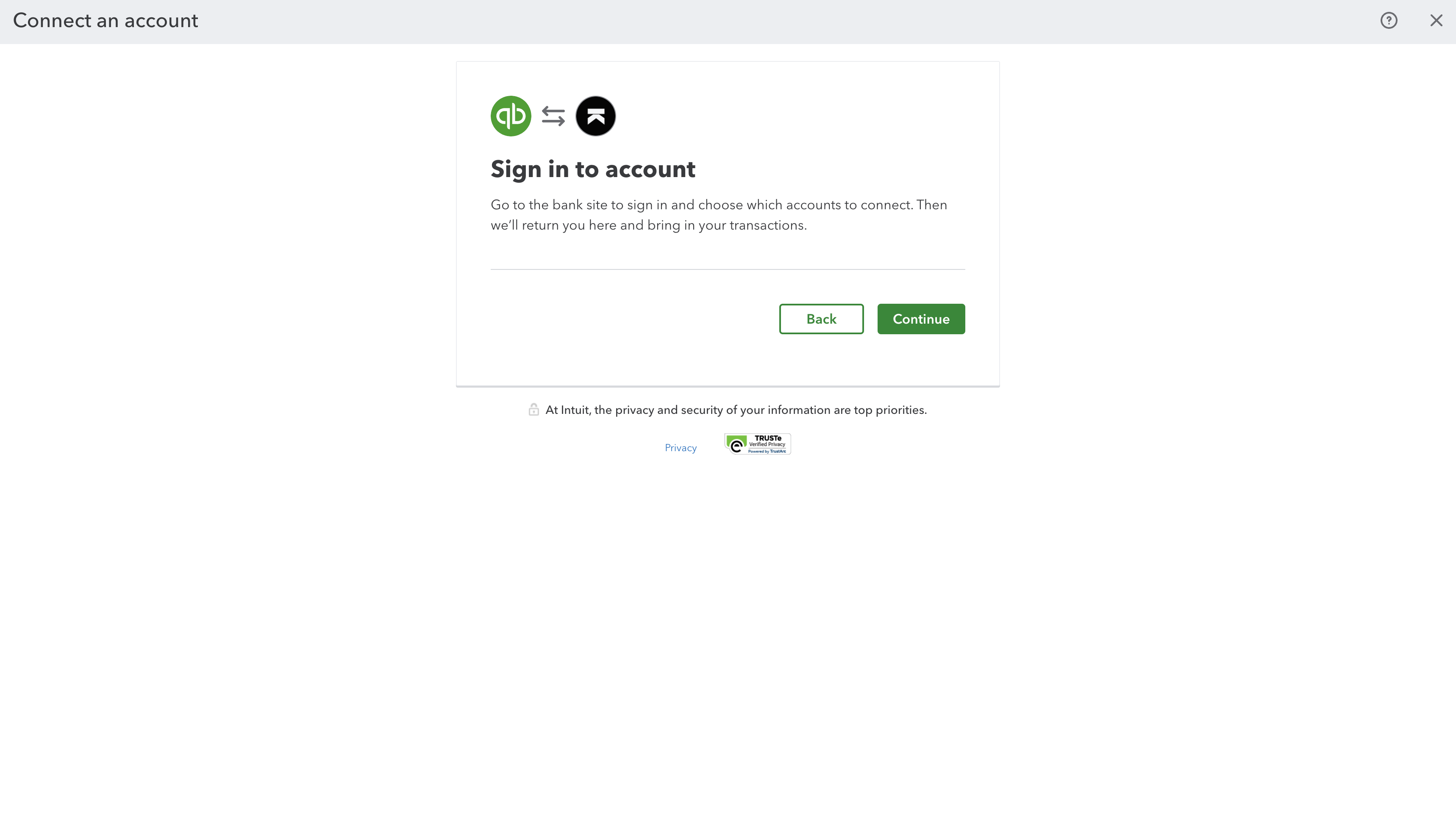
Under Your Books on the left, select Transactions. Then, select Bank transactions at the top of the page and click Connect Account.
.png?fit=max&auto=format&n=IPuMnAgShEf-CIYC&q=85&s=d41bd4ad60d78097b11d8e8e820eda15)
-
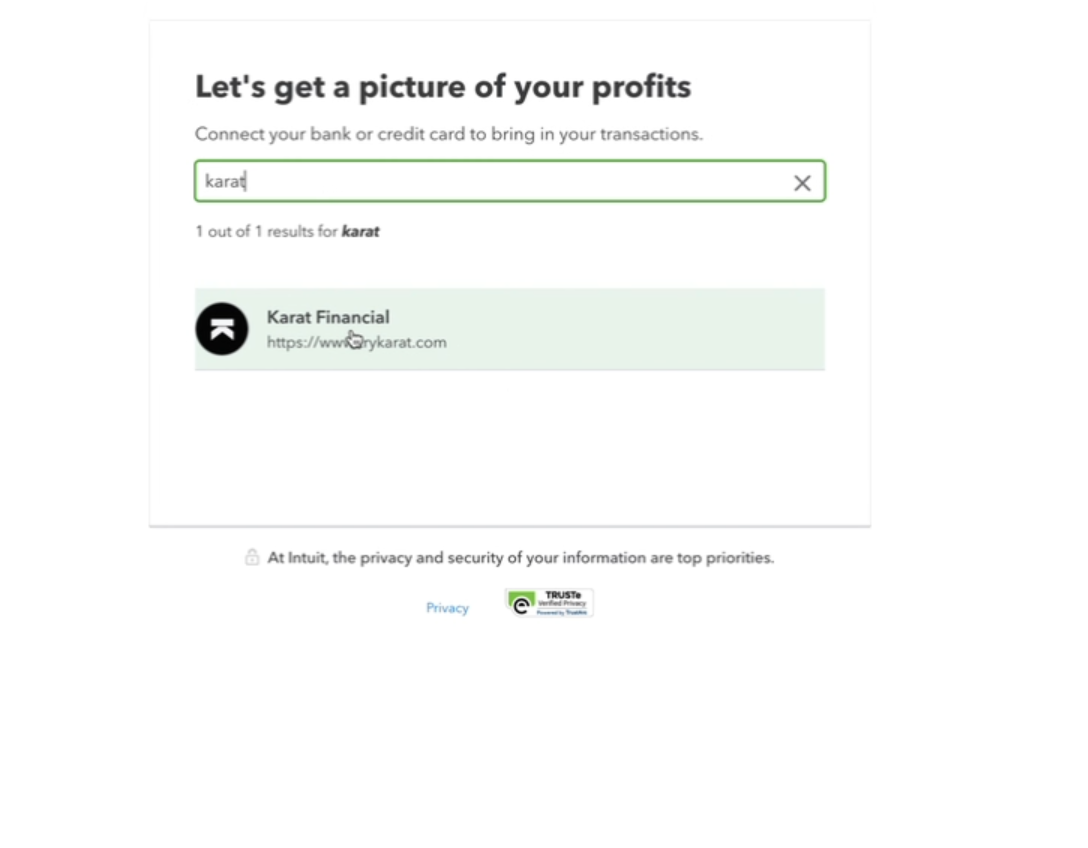
In the search box, enter “Karat” and select Karat Financial to continue.
-
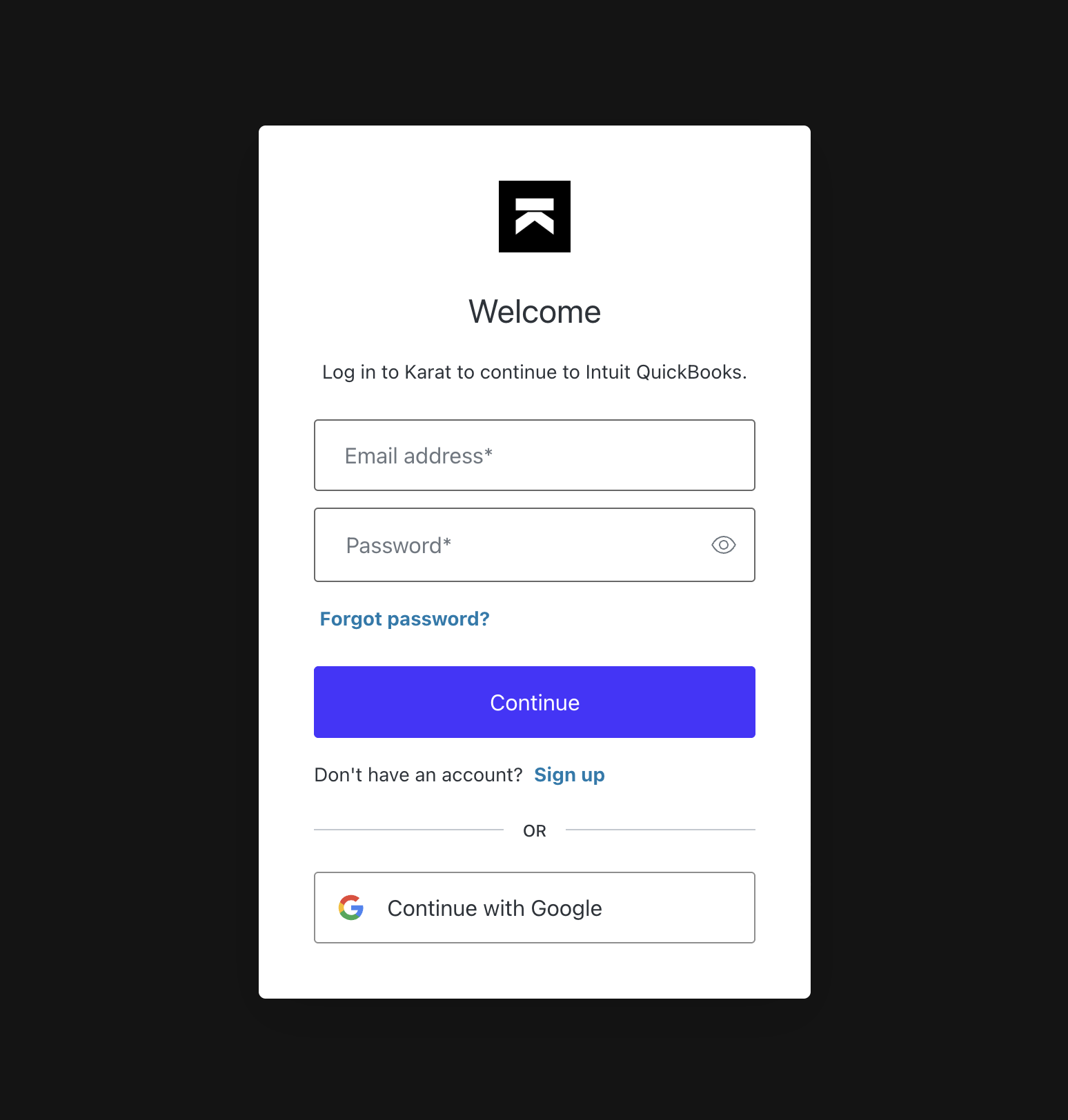
Click Sign in and provide your Karat account login credentials or sign in with Google**.**
Important: You must have admin permissions in the Karat account you are trying to connect. To check and make changes to permissions, contact the Karat support team.
-
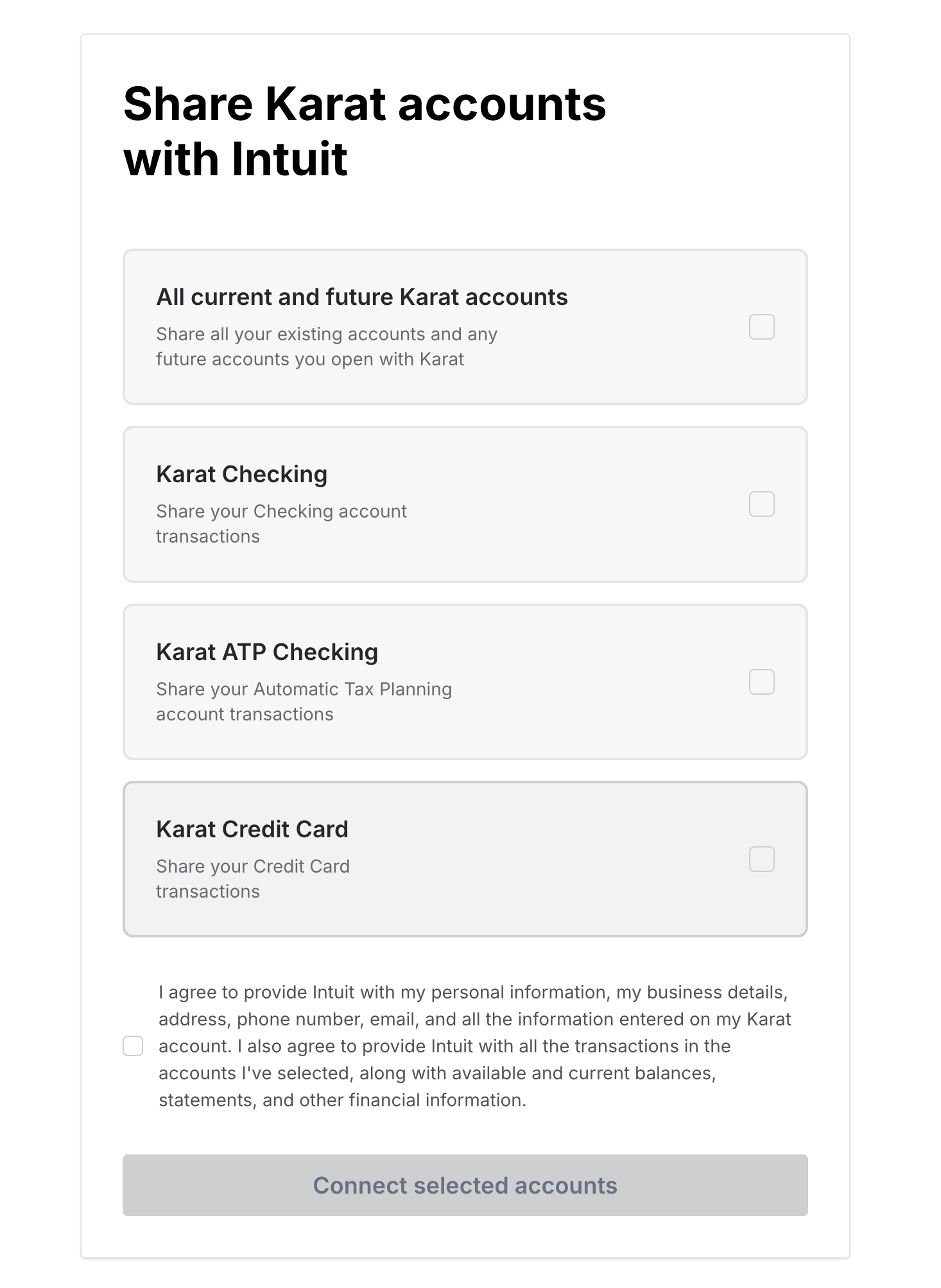
Select which Karat accounts you’d like to share with Quickbooks. Once done, click ‘Connect selected accounts’.
Tip: We suggest you select “All current and future Karat accounts” to ensure that you share all account details with Quickbooks even if you later open new accounts with Karat.
-
Confirm that you’d like to share permissions by pressing ‘Accept’.

-
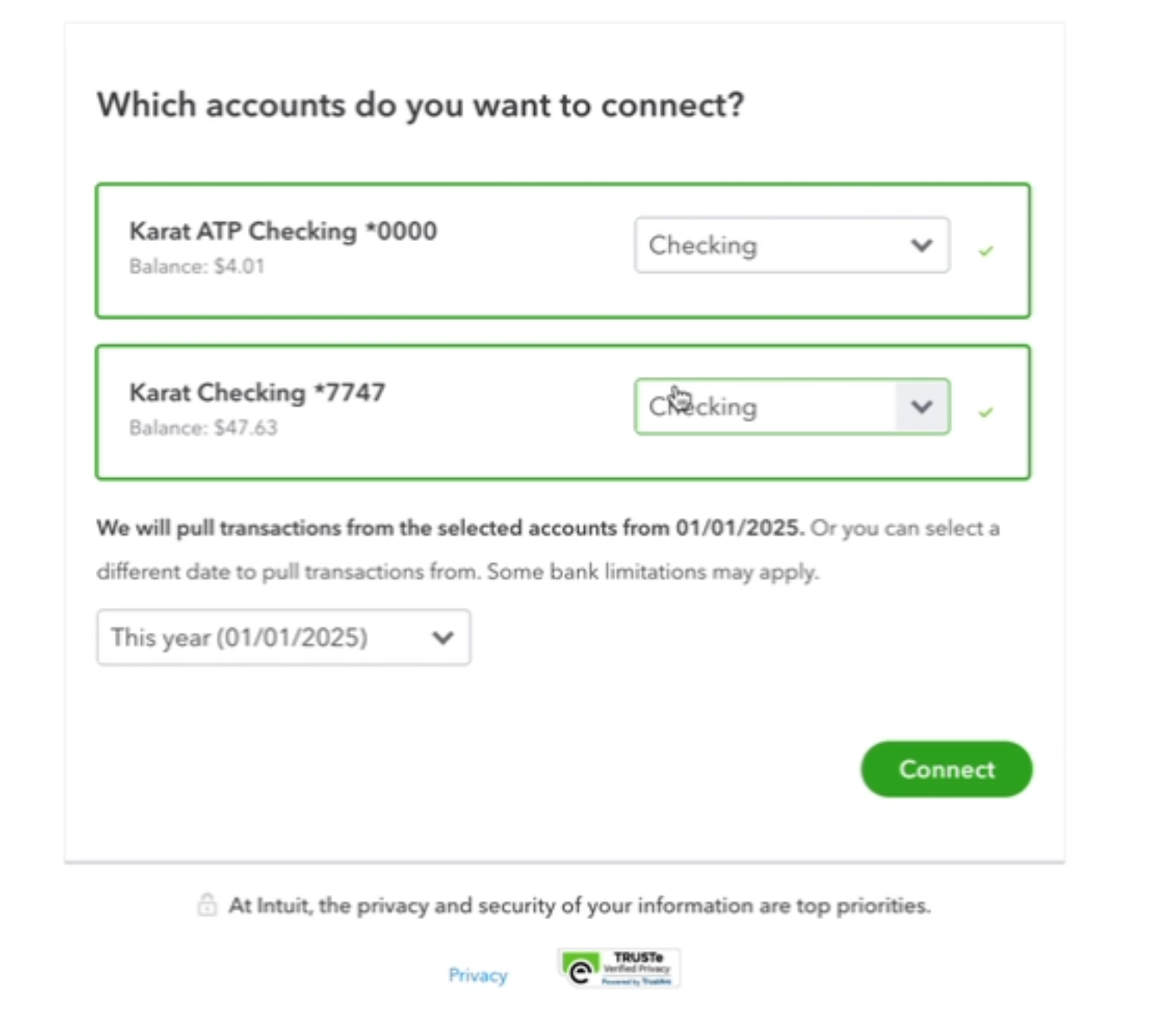
Confirm that you see your account(s) and that they are all the correct type before selecting Continue. Then select a date or enter a custom date for how far back you want to pull transactions (you can pull up to the last 24 months of transactions). Select Connect.
Important: Both your Karat Banking “Checking” and “ATP Checking” accounts are “checking” account types. The Karat Credit Card is a “credit card” account type.
-
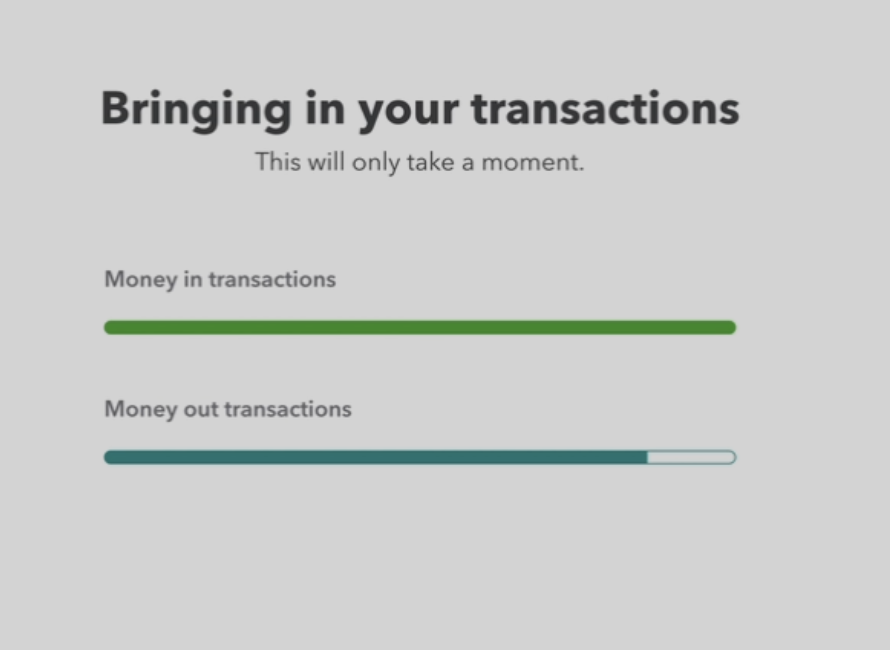
You’ll receive a loading screen while your transactions are being imported. No action needed on this page!
-
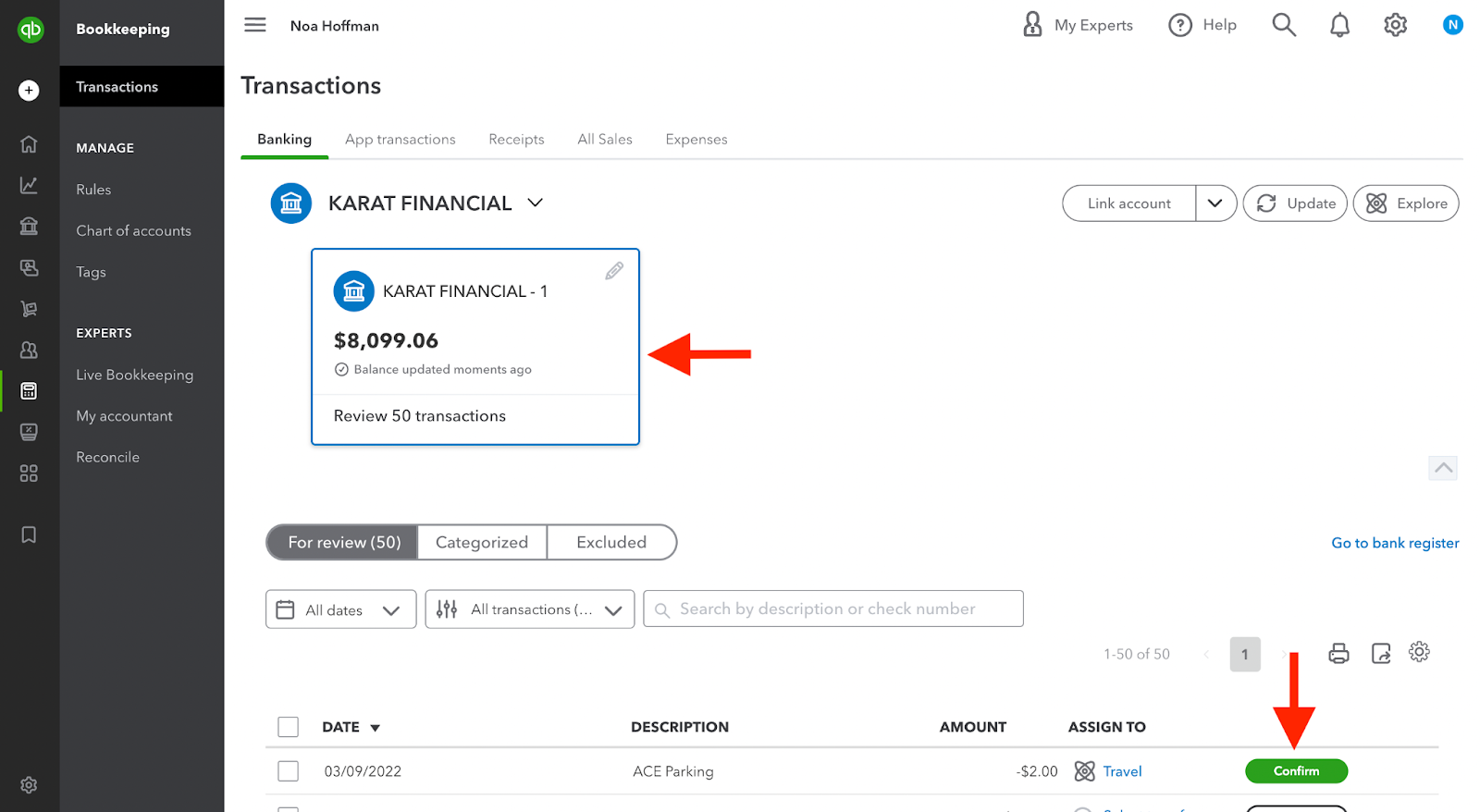
You should now be back in the Bookkeeping > Transactions > Banking screen where you should be able to see all of your Karat transactions ready to be categorized. Notice that this version of Quickbooks will “suggest” categories for you so that all you have to do is review and select Confirm.