> ## Documentation Index
> Fetch the complete documentation index at: https://help.trykarat.com/llms.txt
> Use this file to discover all available pages before exploring further.
# Send money with Payments
> Send individual or bulk Karat Payments by CSV, track batches in the dashboard, download remittance PDFs, and record off-platform payments.
You can send payments to one recipient or many at once.
## Individual payments
Send a payment to a single recipient directly from the Payments dashboard.
## Bulk payments
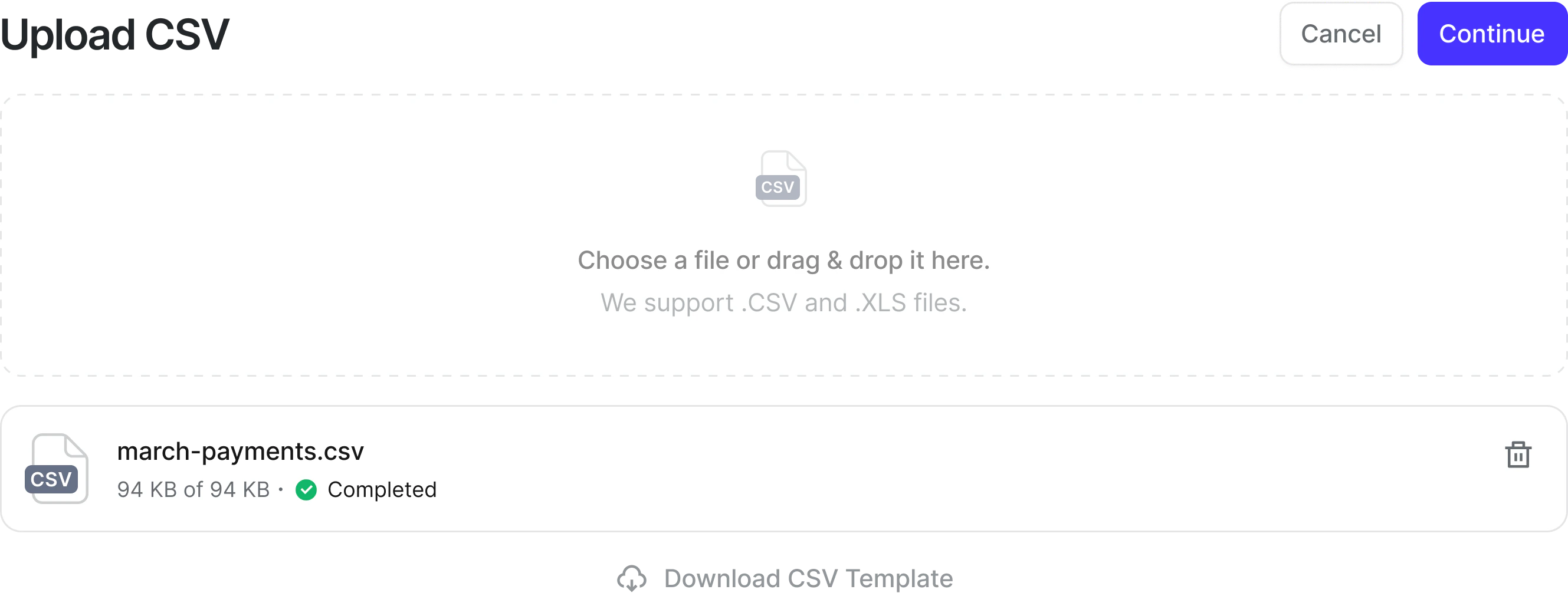
Upload a CSV file to pay multiple recipients at once. A template is
provided to help you format the file correctly.
 ## How to send a payment
1. Go to [Payments](https://app.trykarat.com/banking/payouts)
2. Select **Send payments**
3. Add recipients or upload a CSV
4. Review the confirmation screen and submit
On the confirmation screen, a **Fees** column shows the transfer fee for
each recipient. If your organization pays the fee, the fee amount appears
per row and is included in the batch total. If the recipient pays the fee,
the column displays **N/A**. For new recipients who haven't selected a
payout method yet, fees show as **Pending** until their method is known.
To send international payments, you must first enable at least one
international payment method. See
[How to access Payments](/payments/how-to-access-payments#setting-up-international-payment-methods)
for setup instructions.
Once submitted, funds are held and recipients are notified. New recipients
must complete onboarding before payment is released. Returning recipients
are paid automatically using their saved method.
## Tracking payments
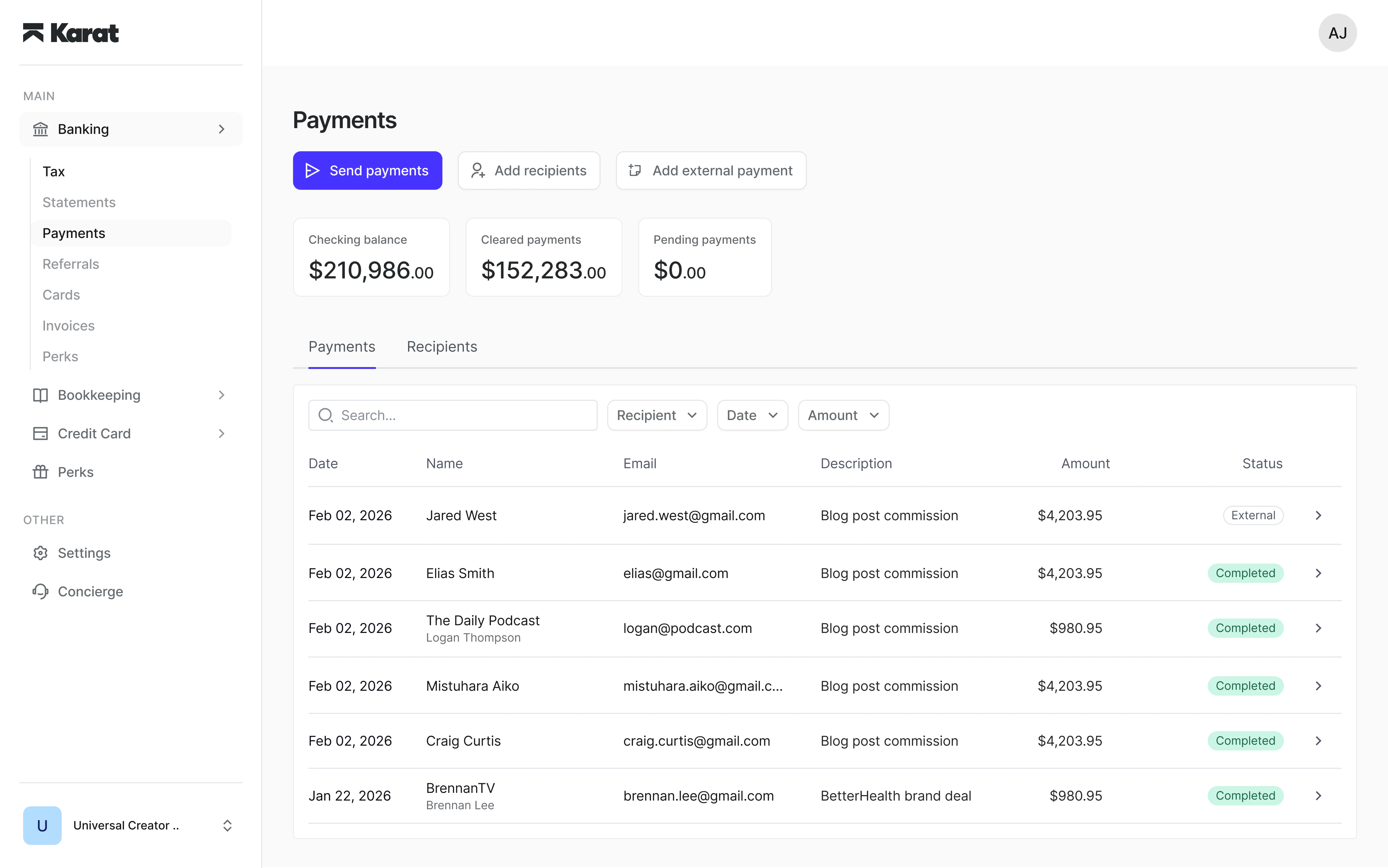
All payments can be tracked in real time from the Payments dashboard.
You can view status at both the batch level and per recipient.
### Filtering and searching payments
Use the filter bar at the top of the payments table to narrow down results. You can combine multiple filters at once:
* **Search** — find payments by recipient name, email, or description.
* **Recipient** — show payments for one or more specific recipients.
* **Status** — filter by payment status group:
* **Cancelled** — payments you cancelled before they were processed.
* **Completed** — payments that were successfully delivered.
* **Failed or returned** — payments that failed to process or were returned after delivery.
* **Pending** — payments that are created, in progress, or under review.
* **Recipient action needed** — payments waiting for the recipient to provide tax information or accept the payment.
* **Date range** — show payments created within a specific time period.
* **Amount** — filter by minimum or maximum payment amount.
Active filters appear as pills above the table. Click the **x** on any pill to remove that filter.
## How to send a payment
1. Go to [Payments](https://app.trykarat.com/banking/payouts)
2. Select **Send payments**
3. Add recipients or upload a CSV
4. Review the confirmation screen and submit
On the confirmation screen, a **Fees** column shows the transfer fee for
each recipient. If your organization pays the fee, the fee amount appears
per row and is included in the batch total. If the recipient pays the fee,
the column displays **N/A**. For new recipients who haven't selected a
payout method yet, fees show as **Pending** until their method is known.
To send international payments, you must first enable at least one
international payment method. See
[How to access Payments](/payments/how-to-access-payments#setting-up-international-payment-methods)
for setup instructions.
Once submitted, funds are held and recipients are notified. New recipients
must complete onboarding before payment is released. Returning recipients
are paid automatically using their saved method.
## Tracking payments
All payments can be tracked in real time from the Payments dashboard.
You can view status at both the batch level and per recipient.
### Filtering and searching payments
Use the filter bar at the top of the payments table to narrow down results. You can combine multiple filters at once:
* **Search** — find payments by recipient name, email, or description.
* **Recipient** — show payments for one or more specific recipients.
* **Status** — filter by payment status group:
* **Cancelled** — payments you cancelled before they were processed.
* **Completed** — payments that were successfully delivered.
* **Failed or returned** — payments that failed to process or were returned after delivery.
* **Pending** — payments that are created, in progress, or under review.
* **Recipient action needed** — payments waiting for the recipient to provide tax information or accept the payment.
* **Date range** — show payments created within a specific time period.
* **Amount** — filter by minimum or maximum payment amount.
Active filters appear as pills above the table. Click the **x** on any pill to remove that filter.
 ## Downloading a payment remittance
You can download a PDF remittance for any payment. The remittance includes the payment amount, status, recipient details, transfer information, fees, and a reference ID.
To download a remittance:
1. Open a payment from the Payments dashboard
2. Click the **download** icon in the payment detail view
3. The PDF will be saved to your device
This is useful for recordkeeping, sharing payment confirmations with recipients, or providing proof of payment to a third party.
## Recording off-platform payments
If you paid someone outside of Karat, you can still record it in your
dashboard. This keeps your records complete and ensures accurate 1099
generation for eligible domestic recipients.
## Marking a payment as a reimbursement
If a payment repays a recipient for expenses rather than paying them for
services, you can mark it as a reimbursement so it's excluded from 1099-NEC
totals. You can do this when sending an individual payment, in the bulk CSV
upload (via the `is_reimbursement` column), or from the overflow menu on an
existing payment row. See
[Marking payments as reimbursements](/payments/marking-payments-as-reimbursements)
for details.
## Downloading a payment remittance
You can download a PDF remittance for any payment. The remittance includes the payment amount, status, recipient details, transfer information, fees, and a reference ID.
To download a remittance:
1. Open a payment from the Payments dashboard
2. Click the **download** icon in the payment detail view
3. The PDF will be saved to your device
This is useful for recordkeeping, sharing payment confirmations with recipients, or providing proof of payment to a third party.
## Recording off-platform payments
If you paid someone outside of Karat, you can still record it in your
dashboard. This keeps your records complete and ensures accurate 1099
generation for eligible domestic recipients.
## Marking a payment as a reimbursement
If a payment repays a recipient for expenses rather than paying them for
services, you can mark it as a reimbursement so it's excluded from 1099-NEC
totals. You can do this when sending an individual payment, in the bulk CSV
upload (via the `is_reimbursement` column), or from the overflow menu on an
existing payment row. See
[Marking payments as reimbursements](/payments/marking-payments-as-reimbursements)
for details.