> ## Documentation Index
> Fetch the complete documentation index at: https://help.trykarat.com/llms.txt
> Use this file to discover all available pages before exploring further.
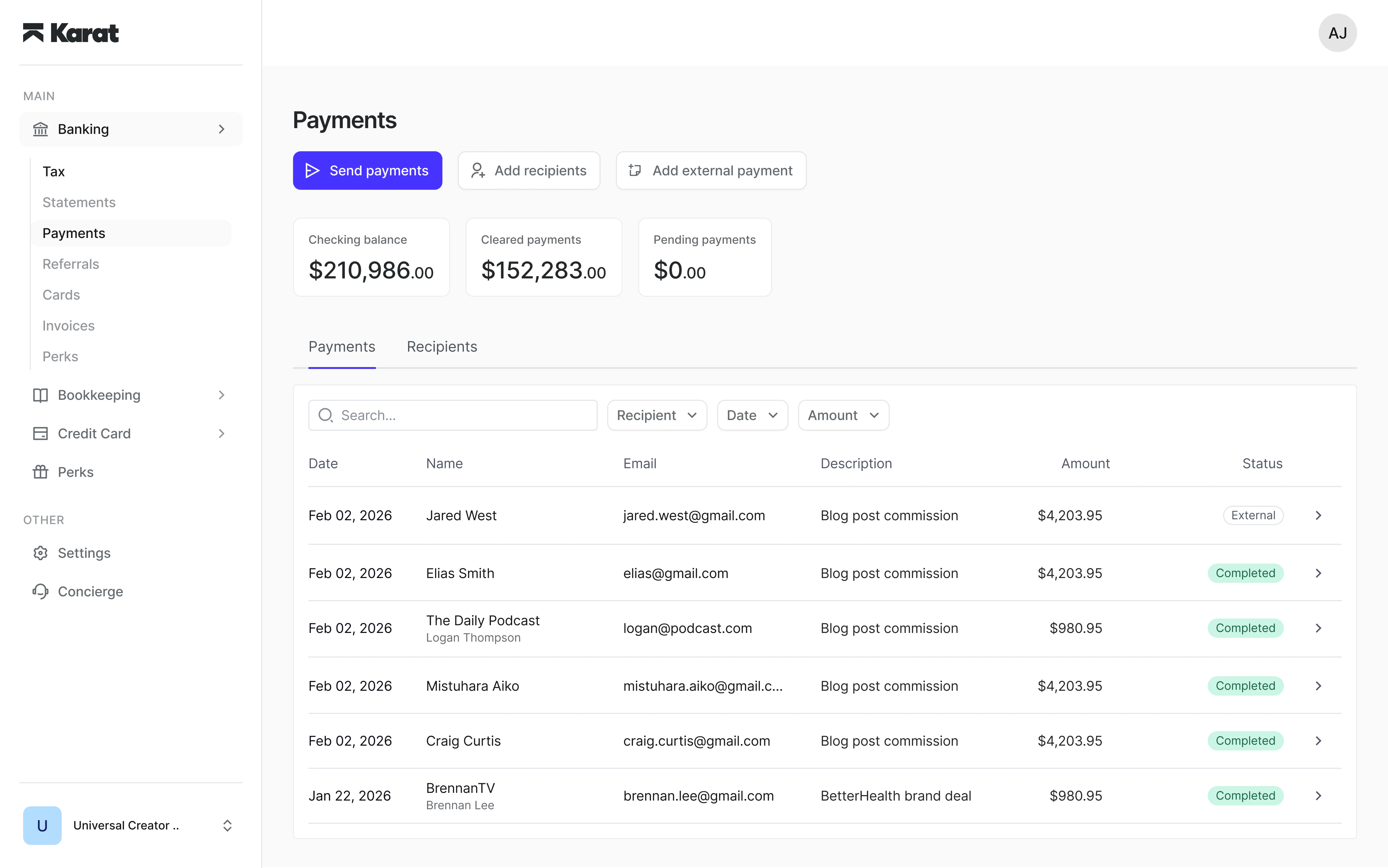
# How to access Payments
Payments is available directly within your Karat account at
[app.trykarat.com/banking/payouts](https://app.trykarat.com/banking/payouts).
## Access requirements
Payments is available to Admin and Manager users. If you don't see it in
your account, contact [banking@trykarat.com](mailto:banking@trykarat.com)
to request access.
## Before you send
Before sending your first payment, make sure:
* Your preferred payout methods (e.g. ACH, PayPal) are enabled in
[payment settings](https://app.trykarat.com/settings/payments)
* You have sufficient funds in your account
Karat does not advance or front payments. You must have funds available
before sending.
## Enabling a payout method
To enable a payout method, go to
[payment settings](https://app.trykarat.com/settings/payments) and select
the method you want to activate.
1. Review and accept the terms for the payout method
2. If your business has multiple owners, confirm each owner's percentage
3. If any beneficial owner holds more than 25% ownership, upload a
government-issued ID for that owner
### Identity document requirements
Beneficial owners with more than 25% ownership must provide a
government-issued photo ID before the payout method can be enabled.
Accepted documents include:
* Passport
* Driver's license
* State-issued ID
You can upload a JPG, PNG, or PDF file. Images are automatically
compressed to meet size requirements. PDF files must be under 2 MB.
Once all required documents are submitted, the payout method is enabled
and you can begin sending payments.
## Setting up international payment methods
If your organization is eligible, international payments are automatically
enabled when Payments is activated. You'll see a banner at the top of the
Payments dashboard prompting you to set up additional payment methods for
paying recipients globally.
From the banner, you can:
* Click **Set up now** to open a guided setup flow
* Enable international bank transfers, SWIFT wire transfers, crypto, or PayPal
* Review and accept terms for each method before activation
Once a method is enabled, it appears as **Available** in the setup
modal. You can manage enabled methods and configure who pays the transfer
fee for each method in
[payment settings](https://app.trykarat.com/settings/payments). See
[Payments fees](/payments/payments-fees#who-pays-the-fee) for
details on fee handling options.
If you only need to pay U.S.-based recipients, you can dismiss the
banner and continue with domestic payment methods only.